 v2rc
How to use v2rc, step by step.
From a fresh install to a working tunnel in six steps. Each step shows the screen you will see in the app.
-
Install and open v2rc
Download v2rc for free from the App Store on iPhone and iPad, or from the Mac App Store on Mac. Open the app; after the start screen you land on the home screen.
-
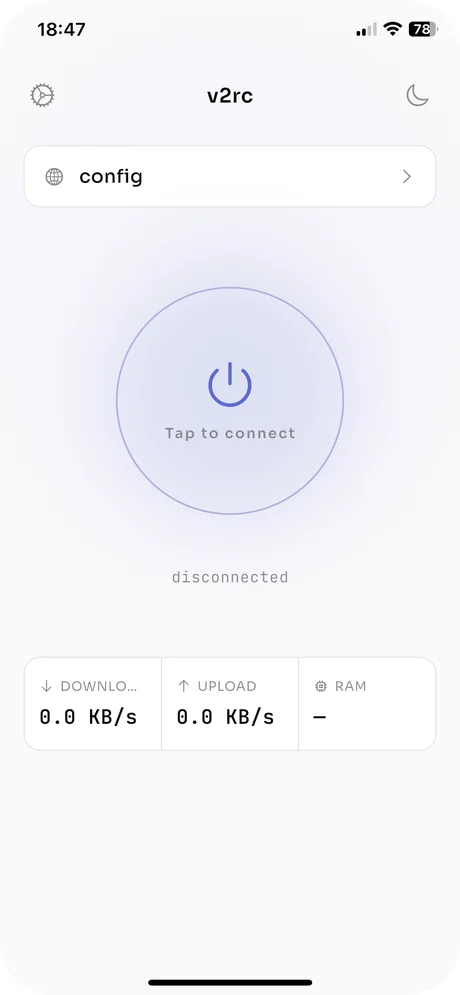
Open your config list
The home screen shows the selected config at the top, the connect button in the middle and live download, upload and RAM counters below it. Tap the config row at the top to open the config list, then tap + in the top-right corner to add a config. The gear icon at the top left opens Settings.
-
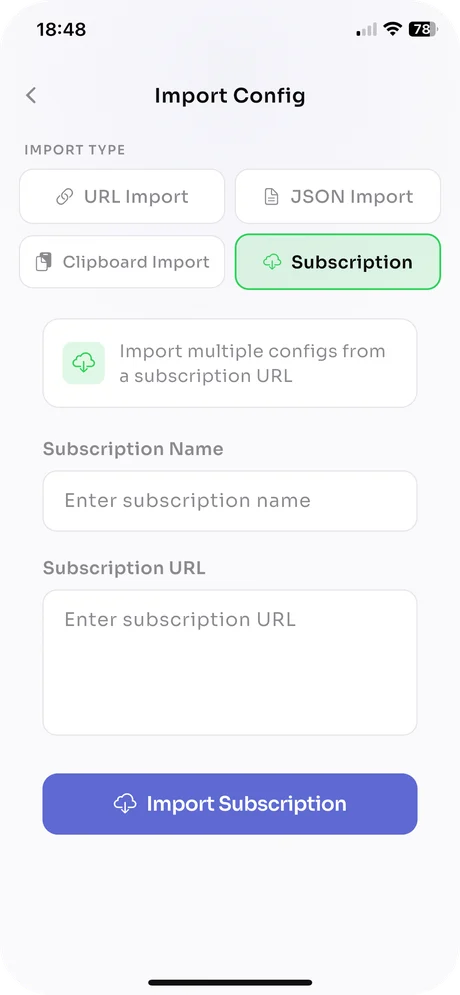
Import a config or a subscription
On the Import Config screen, choose how you want to add servers:
- URL Import: paste a single vmess://, vless://, ss:// or trojan:// link.
- JSON Import: paste a full V2Ray JSON config; syntax errors are reported before it is saved.
- Clipboard Import: imports a link you have already copied.
- Subscription: enter a name and the subscription URL, then tap Import Subscription to add every server it lists at once.
Every entry is validated before it is saved. You can refresh subscriptions later from the toolbar of the config list.
-
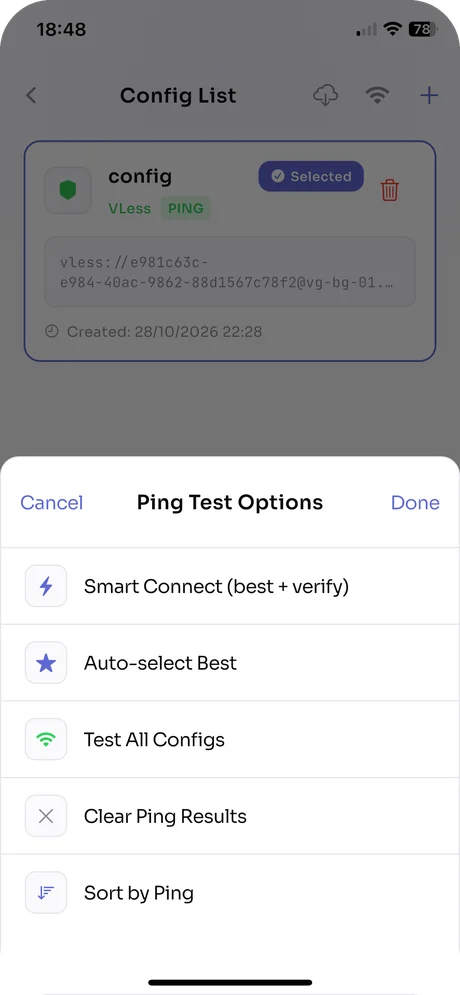
Test your servers by ping
In the config list, tap the signal icon in the toolbar to open Ping Test Options:
- Test All Configs: pings every config and shows its latency.
- Sort by Ping: moves the fastest servers to the top.
- Auto-select Best: selects the config with the lowest ping.
- Smart Connect: picks the fastest config and checks that the tunnel really works before switching.
- Clear Ping Results: clears the results, for example after you change networks.
-
Select a config and connect
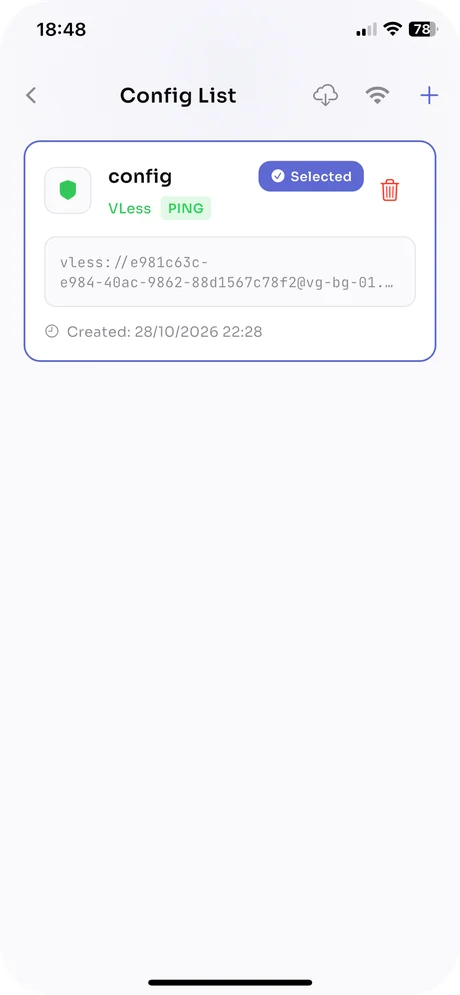
Tap a config to select it; it is marked Selected, and the trash icon deletes it. Go back to the home screen and tap the connect button. The first time, your device asks whether v2rc may add a VPN configuration — allow it. The status under the button changes and the download and upload counters start to move.
-
Adjust it in Settings
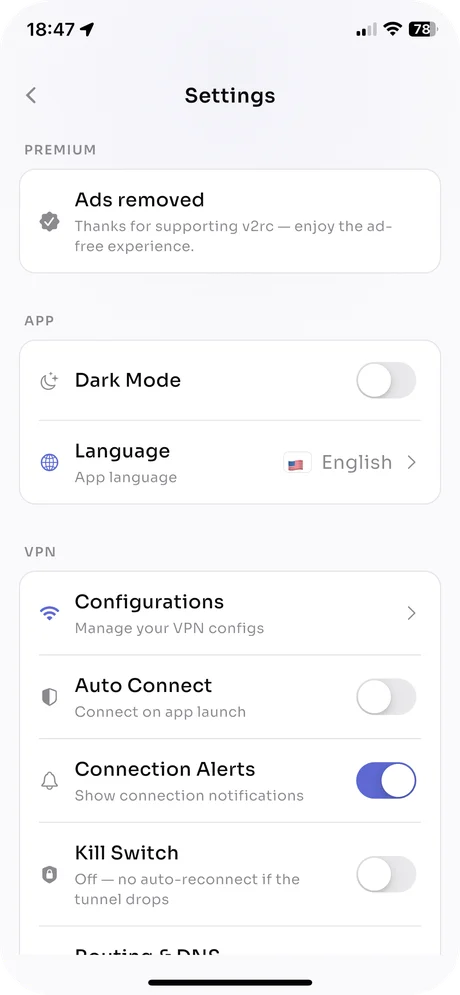
Tap the gear icon on the home screen to open Settings. The switches most people change:
- Auto Connect: connects to the selected config when the app opens.
- Connection Alerts: a notification when the tunnel goes up or down.
- Kill Switch: reconnects automatically if the tunnel drops; off by default.
- Routing & DNS: bypass and block rules and your own DNS resolver.
- Dark Mode, Language: the app’s appearance and language, independent of the system.
To move your configs to another iPhone, iPad or Mac, use Backup & Restore in Settings.
Bring your configs. Leave the guesswork.
Free on the App Store for iPhone, iPad and Mac.